

Tagging the Product Details Page (PDP)
For Ordergroove’s subscription offer to appear on your Shopify site, your product details page (PDP) needs to be tagged with an Ordergroove code snippet.
Our app can only automatically add blocks for Online Store 2.0 themes.
If your product details page is not Online Store 2.0 (it does not use blocks), you can tag your PDP manually by following the steps below.
Ordergroove’s offer may not appear correctly if there are code snippets from other subscription programs present. Please ensure your theme is clean of other subscription code snippets before installation.
This article is only relevant for stores using Shopify. If your store uses a Shopify Online Store 2.0 theme, refer to Install Ordergroove on an Online Store 2.0 Theme for help.
The steps for adding an offer tag depend on which version of Ordergroove’s Shopify integration your theme is on. If you are installing Ordergroove on a brand new theme, go to Option 1. If you already have Ordergroove code on your theme, check if the file ordergroove_offer.liquid is present — if so, go to Option 2, otherwise go to Option 1.
Option 1: Adding the Offer Tag for Recent Themes
If you are using a recent theme or one that was injected after November 3, 2022, you are on our most recent integration and can use our upgraded offer tag.
-
Open the theme code editor on Shopify.
-
Find the file that contains the “add to cart” button. This file is usually one with “product” in the name — the most common are
product-template.liquidorproduct-form.liquid, but it may differ depending on your theme. You can locate the “add to cart” button by pressing Ctrl+F and searching foradd. -
Paste the following code snippet above the “add to cart” button:
-
Click Save.
Now that you’ve tagged the PDP, check it out on your site. If your subscription program is live, navigate to a subscription-eligible product and you should see the subscription options appear on the page.
Option 2: Adding the Offer Tag for Vintage Offers
If your theme is on an older version of our integration, the file ordergroove_offer.liquid will already be present in your theme. If so, follow these steps:
-
Open the theme code editor on Shopify.
-
Find the file that contains the “add to cart” button. The most common files are
product-template.liquidorproduct-form.liquid, but it may differ depending on your theme. Press Ctrl+F and search foraddto locate the button. -
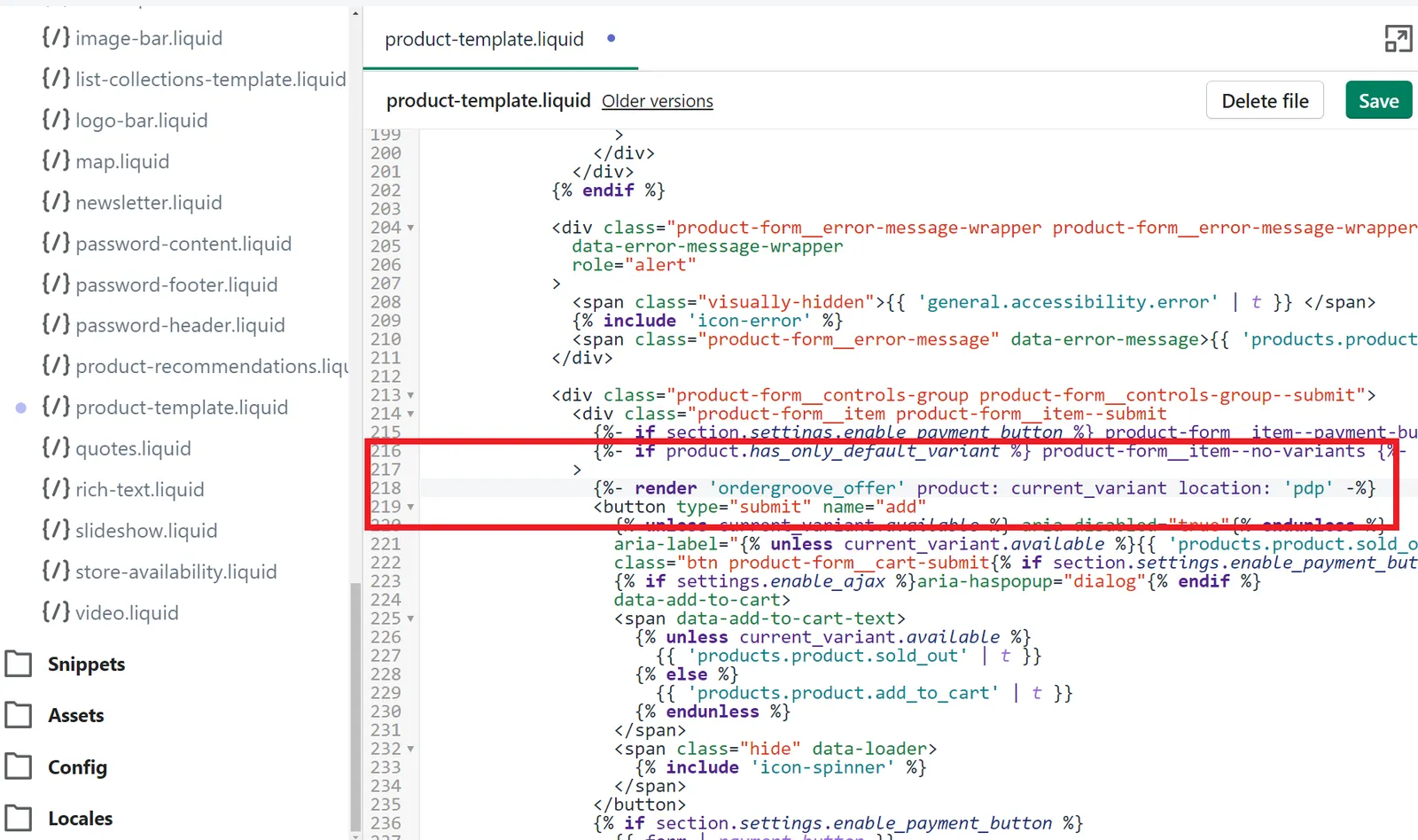
Paste the following code snippet above the “add to cart” button:
Here is an example in the Debut theme:
-
Click Save.
Now that you’ve tagged the PDP, check it out on your site. If your subscription program is live, navigate to a subscription-eligible product and you should see the subscription options appear on the page.