

Customizing Calendars and Dates in v25
Ordergroove uses the cally and dayjs libraries to provide an optimized experience for users changing and selecting dates. This guide covers how to customize the functionality of calendars and dates in v25.
Requirements
- This article is intended for developers on v25 templates.
- You should already have a thorough understanding of the fundamentals of HTML, CSS, and JavaScript.
How to Tell What Version You’re On
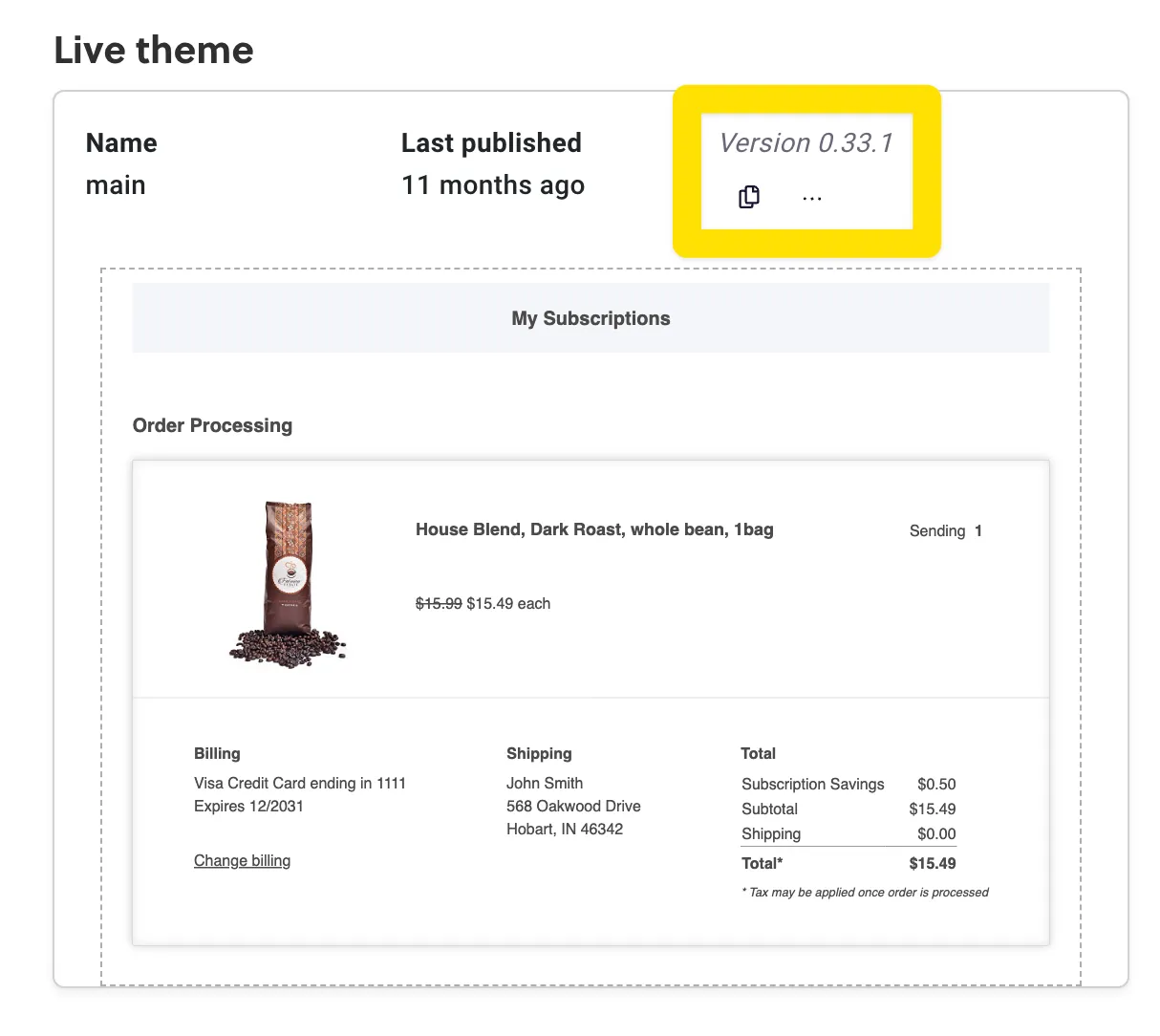
Before the September 2024 release of v25, all Subscription Manager installations were on version 0, displayed in the Theme Designer as version 0.X.X. You can check which version you’re on by going to Ordergroove > Subscription > Subscription Manager.
Customizing the Datepicker
Ordergroove’s datepicker is used to change the date of an order or the starting date of a renewed subscription. The template code can be found in ui-elements/datepicker-popover.liquid, wrapped in the sm-datepicker custom element with JavaScript in script.js to add save and close functionality.
The datepicker uses the cally library for functionality and styling, with additional styles in datepicker.less.
To customize the appearance of the datepicker, refer to cally’s theming guide.
Customizing Date Displays
Anywhere the Subscription Manager shows a date, Ordergroove uses dayjs to format it. The dayjs formatting guide is helpful if you want to change how a date is displayed.
In templates in the views folder, dates are formatted with the date filter, which accepts a dayjs formatting string. For example, {{ next_order_date | date('L') }} displays the next order date with the shorthand localized locale.
Ordergroove’s backend makes dayjs available through window.og.smi.dayjs on the page where the Subscription Manager is loaded, and it is used in script.js to format dates in JavaScript. For example, dayjs(order.place).add(increment, unit) parses the string order.place into a date and adds a specified timeframe (for example, 10 days) to it.
Limiting Dates
To limit how far in the future a customer can select a date, see Limiting Future Dates in the Change Date Calendar.