

Modify the Change Billing Process Button
Customers on Shopify click a button to trigger a Change Billing Information email. Shopify emails them a secure link directing the customer to a checkout-like page where they can update their credit card information.
This article covers updating the Subscription Manager so that your style changes affect the Change Billing button and keep your brand consistent.
Background
The Change Billing button previously sat below the Subscription Manager, outside it — meaning it could not be styled alongside the SM and could confuse customers trying to update their payment method.
As of June 2023, this button has been moved inside the Subscription Manager. A Change Billing link now appears under the Billing section by order.
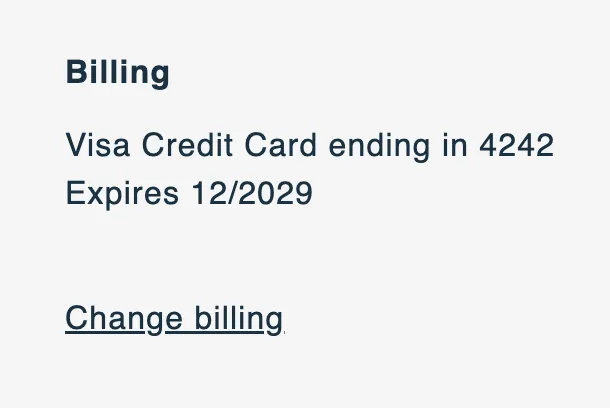
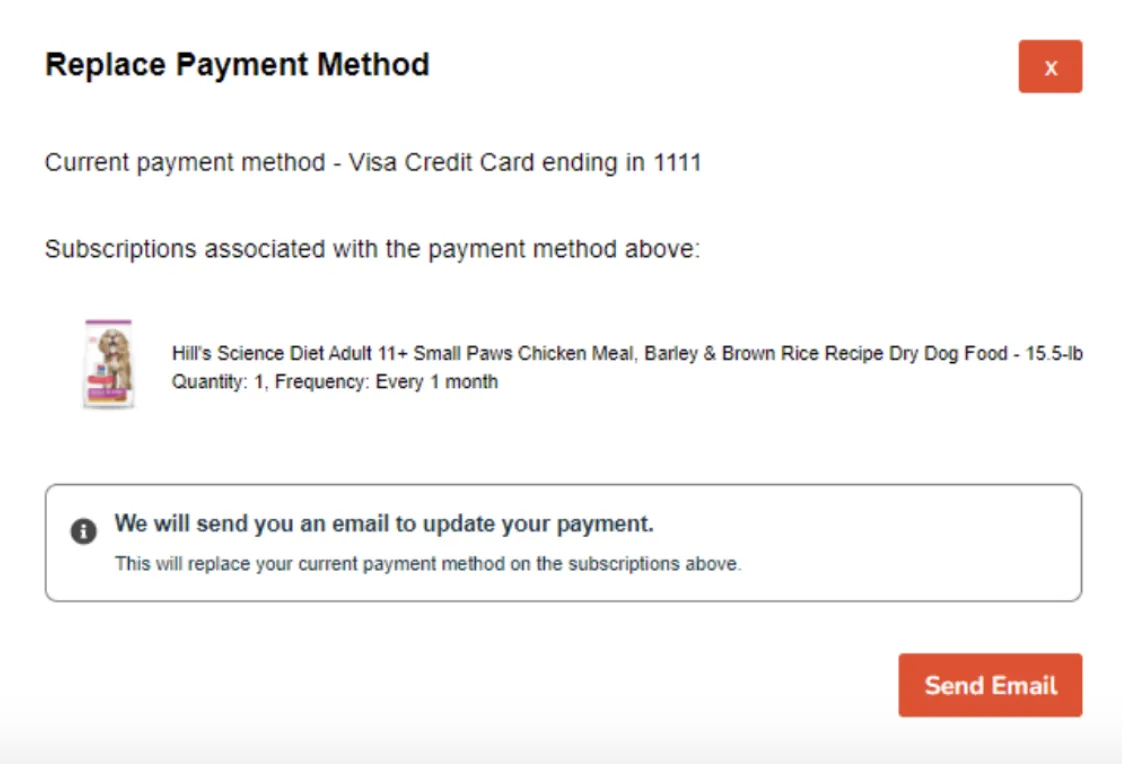
Clicking the link opens a Replace Payment Method modal where the customer can see all subscriptions associated with that payment method and click Send Email to trigger an update.
If your Subscription Manager uses a legacy theme version, follow the instructions below to switch to the latest experience.
Update Your Subscription Manager with the Advanced Editor
Log into Ordergroove and go to Subscriptions > Subscription Manager > Advanced.
1. /views/billing-shipping-details.liquid
Find billing-shipping-details.liquid under the Views folder. Locate and delete the following lines:
Replace with:
2. /views/change-billing-shopify-only.liquid
Create a new view file named change-billing-shopify-only.liquid. Paste in the following code and click Save:
3. styles/billing-display.less
Create a new styles file named billing-display.less. Paste in the following code and click Save:
4. styles/dialogs.less
Find dialogs.less under the Styles folder. Locate .og-dialog-title { and delete the following two lines:
Then locate .og-cancel-title {, delete it, and replace it with the following:
5. styles/main.less
Find main.less under the Styles folder and add the following line:
6. locales/en-US.json
Find en-US.json under the Locales folder. Locate "modal_shipping_header": "Change Shipping Address" and add the following lines after it:
Then locate "pause_subscription_error": "An error occurred while pausing your subscription. Please try again later.", add a comma after that line, and add the following:
7. locales/en-CA.json
Find en-CA.json under the Locales folder. Locate "modal_shipping_header": "Change Shipping Address" and add the following lines after it:
Then locate "pause_subscription_error": "An error occurred while pausing your subscription. Please try again later.", add a comma after that line, and add the following:
8. locales/es-ES.json
Find es-ES.json under the Locales folder. Locate "modal_shipping_header": "Cambiar las opciones de envío" and add the following lines after it:
Then locate "pause_subscription_error": "Ocurrió un error pausando la suscripción. Por favor, vuelva a intentarlo más tarde.", add a comma after that line, and add the following:
9. locales/fr-CA.json
Find fr-CA.json under the Locales folder. Locate "modal_shipping_header": "Modifier l'addresse de livraison" and add the following lines after it:
Then locate "pause_subscription_error": "Une erreur s'est produite, SVP réessayer de pauser votre abonnement plus tard.", add a comma after that line, and add the following:
Additional Assistance
If you followed the steps above and still don’t see the button, submit a ticket to help@ordergroove.com.