

Limiting Future Dates in the Change Date Calendar
Customers can modify upcoming subscription order dates in the Subscription Manager. By default, customers can push out future orders as far as they want — but you can limit how far they can set future order dates using script.js.
Giving subscribers the opportunity to pause or skip their next order is a good retention strategy to help mitigate churn due to overstock or other circumstances. There’s no one-size-fits-all recommendation: some merchants limit selection to only a few weeks and encourage customers to skip a shipment instead, while others let customers postpone by months.
Current — smi-templates 25.0.0+
To set a maximum number of days a customer can select, add a data-max-date-offset-days attribute to <sm-datepicker>. For example, to limit selection to the next 30 days, update your <sm-datepicker> in reactivate-subscription.liquid:
Similarly, you can set a minimum number of days from today using data-min-date-offset-days. This prevents a customer from selecting a date before the supplied number of days from now:
Subscription Manager 0.33.3 – 0.41.1
Accessing the Advanced Editor
You can access the advanced editor through your Ordergroove Admin:
- Log in to Ordergroove.
- Go to Subscriptions on the top toolbar, and select Subscription Manager.
- Toggle Advanced on the top left.
Some aspects of this article require technical expertise with coding languages. This is self-serve and outside of the normal support policy.
The Subscription Manager Calendar
The Subscription Manager uses an HTML5 date input. HTML5 date inputs support min and max attributes to restrict selectable dates. A simple but impractical approach would be to hard-code those values:
In this example, the earliest selectable date would be July 30th, 2023 and the latest would be October 31st, 2023. All other dates would be blocked.
Hard-coding date values requires constant upkeep. A better approach is to set the date attributes dynamically using script.js.
Using script.js to Modify the Calendar
Open Scripts > script.js. Here you can set minDate and maxDate constants using Day.js — a minimalist JavaScript library for parsing, validating, manipulating, and displaying dates, with a largely Moment.js-compatible API.
Add the following code to script.js:
This sets maxDate to 120 days from today and minDate to 4 days from today.
Next, call these values in the date input in change-date.liquid. Find the following code and add the min and max attributes as shown:
maxDate
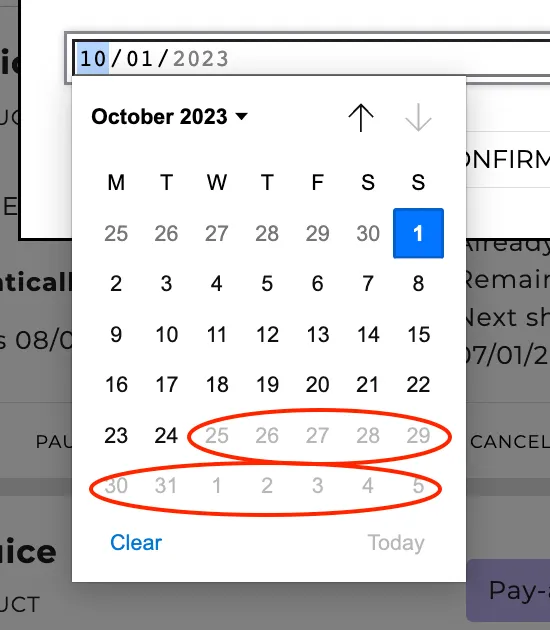
In the image above, dates circled in red are grayed out — the customer cannot select any date after October 24th, 2023.
minDate — today’s date shown in light blue
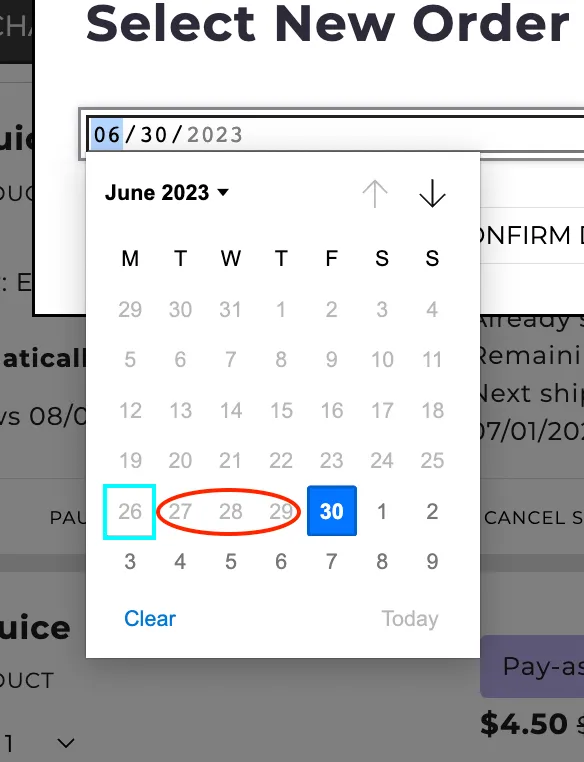
Here the earliest available date is June 30th, 2023. Because minDate is set to .dayjs().add(4, 'days'), the four days including today are grayed out.
Adjusting the number inside .add(X, 'days') sets the offset for min or max. Note that min and max can be used independently — you do not need to set both.
For more information on Day.js, see the Day.js technical documentation.