Dynamic Shipping Restrictions in the Subscription Manager
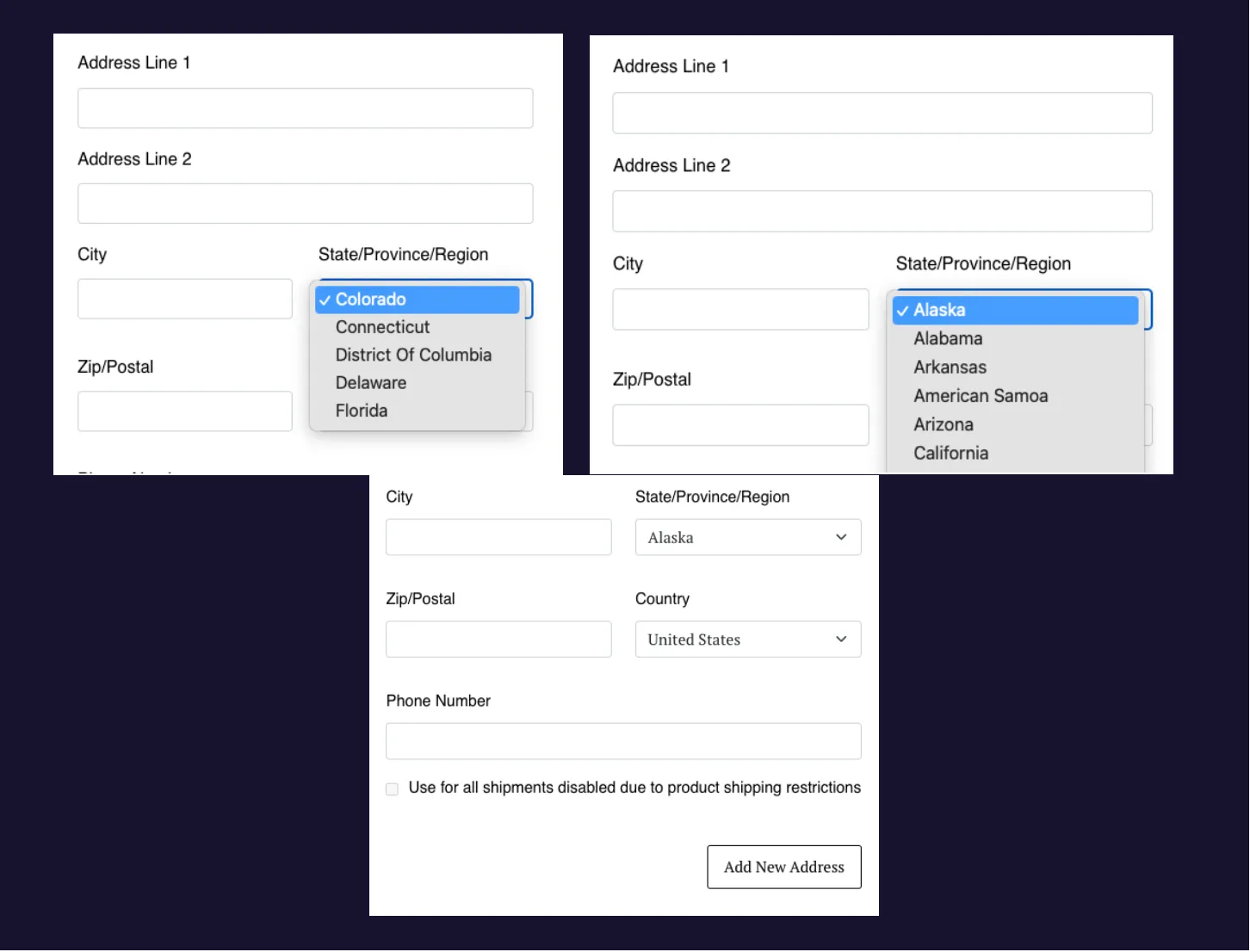
Your site may have certain products that cannot be shipped to certain states. If this is the case, you can change the state choices available when a customer edits their subscription address.
Below is a step-by-step guide to implementing these restrictions. This guide targets restrictions by product ID, but you can use any identifier — for example, subscription.extra_data, product groups, order items, etc. See the Object Reference for a full list of available targets.
Subscription Manager Version
The implementation of dynamic shipping restrictions depends on your theme version. Choose the method that matches your installed Subscription Manager version.
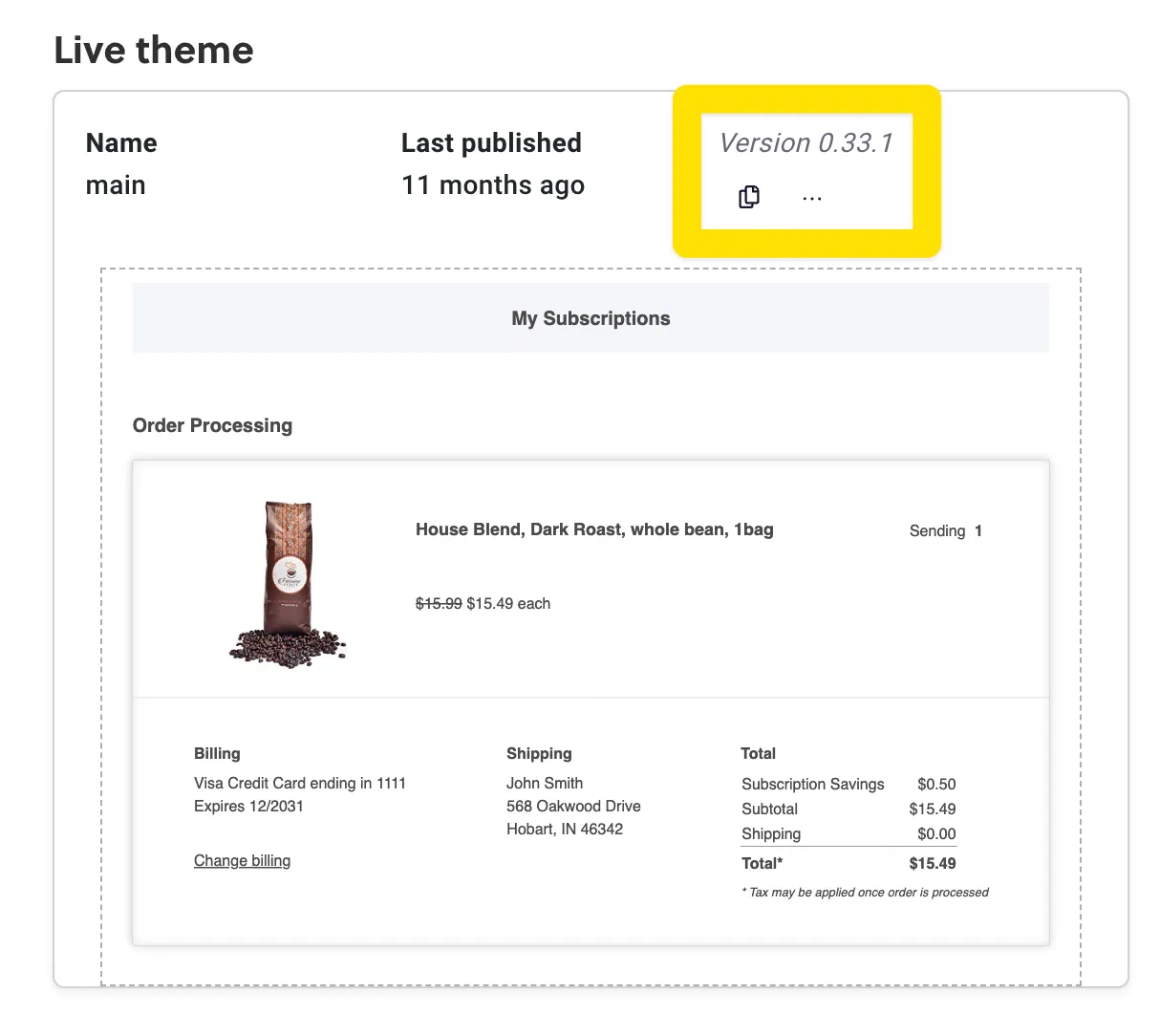
How to Tell What Version You’re On
Before the September 2024 release of v25, all Subscription Manager installations were on version 0, displayed in the Theme Designer as version 0.X.X. You can check which version you’re on by going to Ordergroove > Subscription > Subscription Manager.
Current — smi-templates 25.0.0+
Log in to Ordergroove and go to Subscriptions > Subscription Manager > Advanced. Make the following changes to your code:
Views: order-summary/change-shipping-dialog.liquid
Locate {% set localized_countries = 'localized_countries' | t %} and add the following line below it. Modify the state codes to match the states you do not ship to:
Locate the <sm-country-state-dropdown> HTML tag and add a new .excludedStates property. The full tag should appear as follows:
script.js
Locate the syncCountryAndStates function inside the SMCountryStateDropdown custom element definition. Inside the states.forEach loop, add if (this.excludedStates.includes(code)) return; before calling the createOption function. The updated function should look similar to this (minor updates may have occurred in your version):
Subscription Manager 0.33.3 – 0.41.1
Log in to Ordergroove and go to Subscriptions > Subscription Manager > Advanced. Make the following changes to your code:
Views: change-shipment-address.liquid
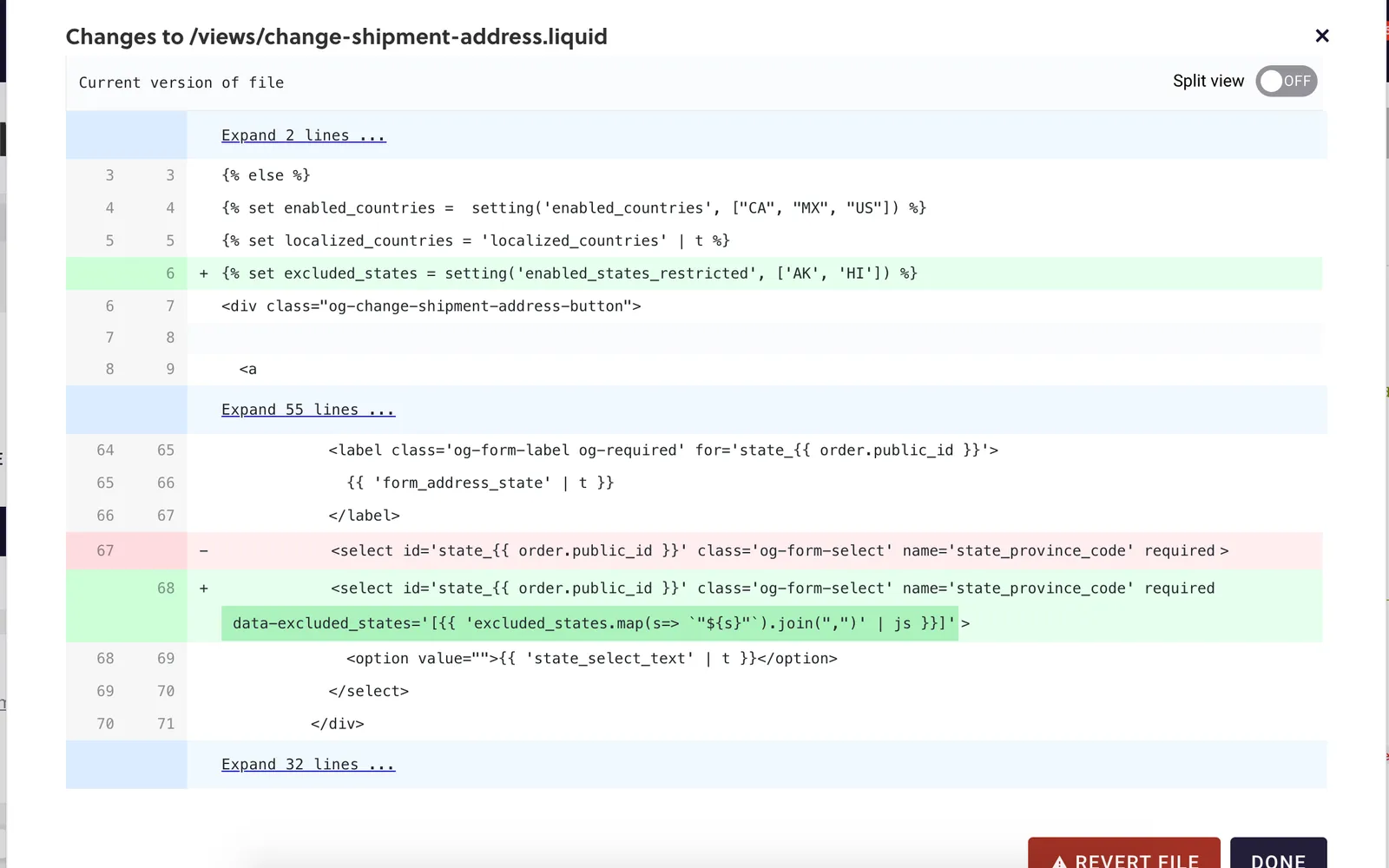
Locate {% set localized_countries = 'localized_countries' | t %} and add the following line below it. Modify the state codes to match the states you do not ship to:
Locate and replace the <select> element for state with the following:
script.js
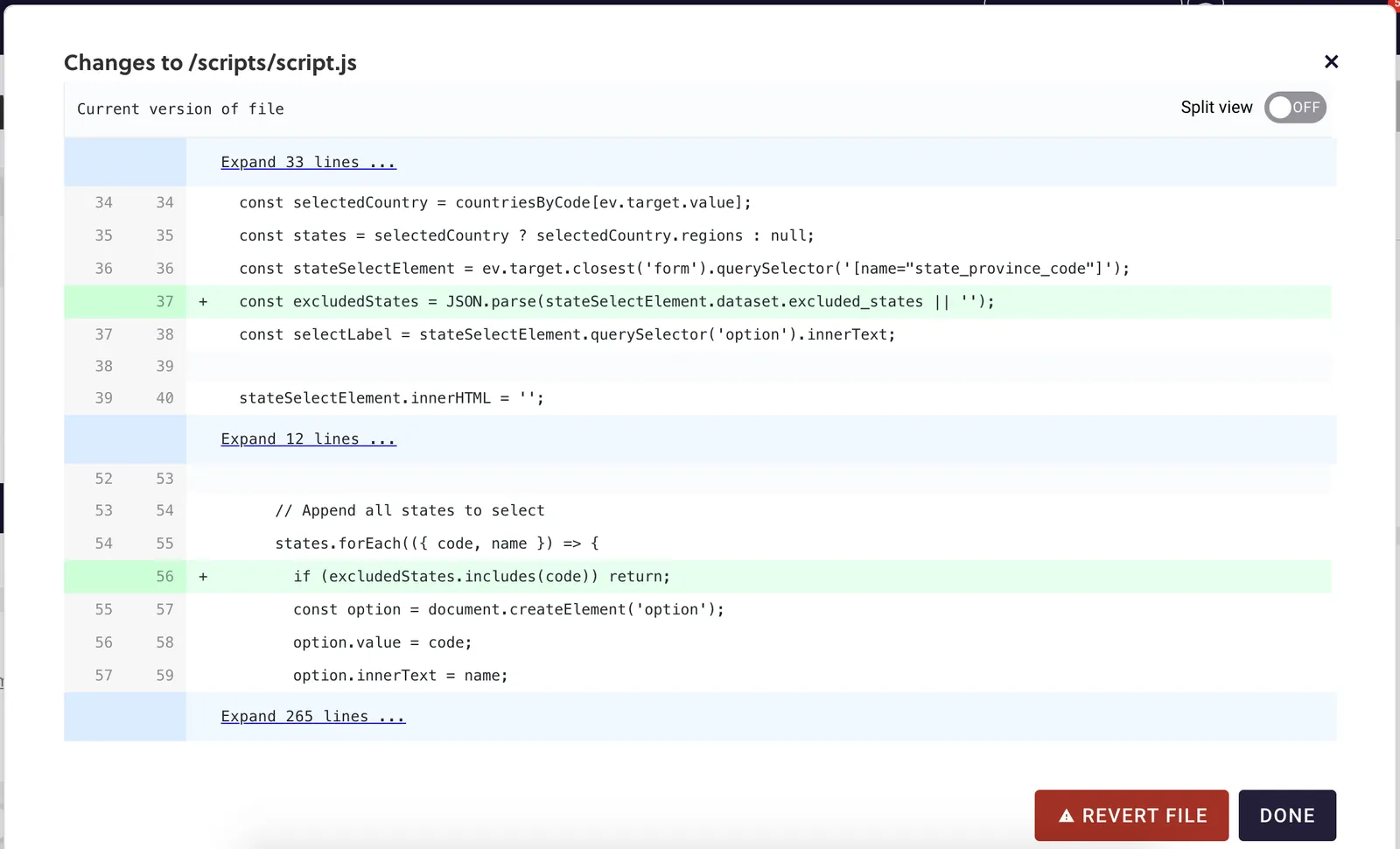
Locate const stateSelectElement = ev.target.closest('form').querySelector('[name="state_province_code"]') and add the following line below it:
Locate states.forEach(({ code, name }) => { and add the following line:
Legacy — Subscription Manager 0.33.2 and Earlier
Step 1: Set All States for the Shipping Dropdown
Set a list of all localized_states you want available for non-restricted products and put that in a JSON object in the en-US.json file.
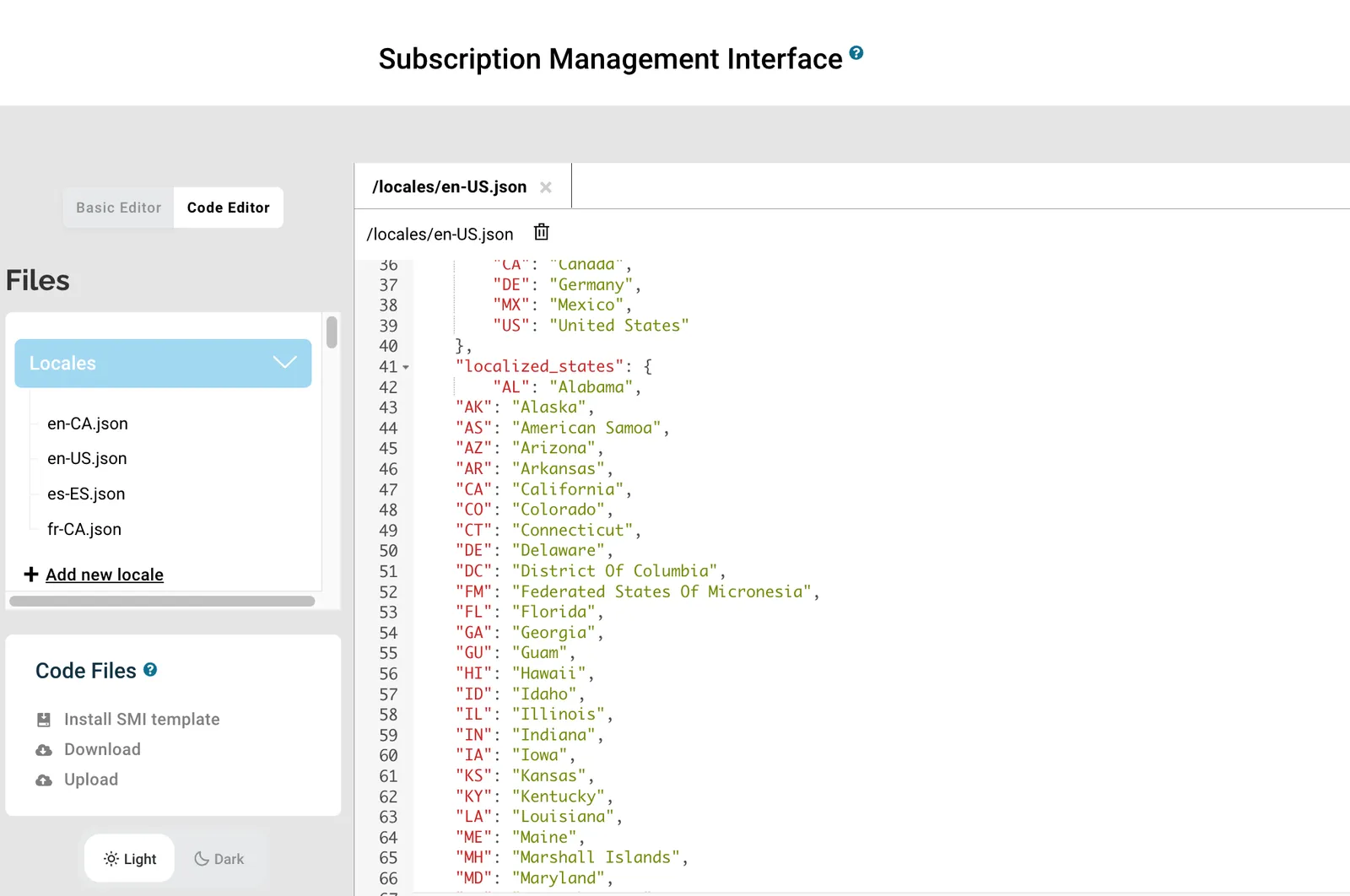
Step 2: Set the Variables
In change-shipment-address.liquid, set the full list of enabled states (enabled_states_all) and the list of restricted states (enabled_states_restricted). These will be the two lists pulled into the select form based on the criteria. Also set the states object pointing to the localized_states list defined in step 1.
Then set restricted_products to false and run a for loop to iterate over all items in an order and evaluate the product group name or product ID. restricted_products becomes true if the product or group is found.
Step 3: Switch State from Input to Select
Replace the state input field with a select dropdown. Use the restricted_products flag to determine which list of states to offer:
Step 4: Disable the “Update All” Checkbox
If a customer has products that aren’t shippable to certain states, suppress their ability to use the “update for all” feature on orders that offer the full state list. A state chosen there may be one the restricted products can’t ship to, so applying it to every subscription could send them to an unsupported state. Orders that contain restricted products only offer states every product can ship to, so they can keep the checkbox. That’s why the code below disables it in the else branch.
Example Result