

Tagging the Subscription Manager
Add a link to the Ordergroove Subscription Manager on your Shopify customers/account page
You can update your customers/accounts page to include a link to Ordergroove’s Subscription Manager. If your customers/accounts page supports blocks where you want the link to be, check out our streamlined process for Online Store 2.0 at Convert your customers/account page to support Online Store 2.0.
This article is only applicable for stores on Shopify.
Before You Start
Ordergroove’s enrollment offer may not appear correctly if there are code snippets from other subscription programs present. To prevent this issue, please ensure that your theme is clean of other code snippets before installation.
Add the Subscription Manager Code
- Open the theme code editor on Shopify.
- Search in the list of files for a file called
ordergroove_subscription_interface_link.liquid. If it exists, skip ahead to the Add link to the Subscription Manager section below. - If it doesn’t exist, go to the Snippets folder and add a snippet called
ordergroove_subscription_interface_link.liquid. In the blank new file, paste the following code:
Add Link to the Subscription Manager
- Open the theme editor on Shopify.
- Find the file for the accounts page (the most common file is
customers/account.liquid). - Add the following line of code to your customer account page:
Here is an example in the Debut theme’s customers/account.liquid:
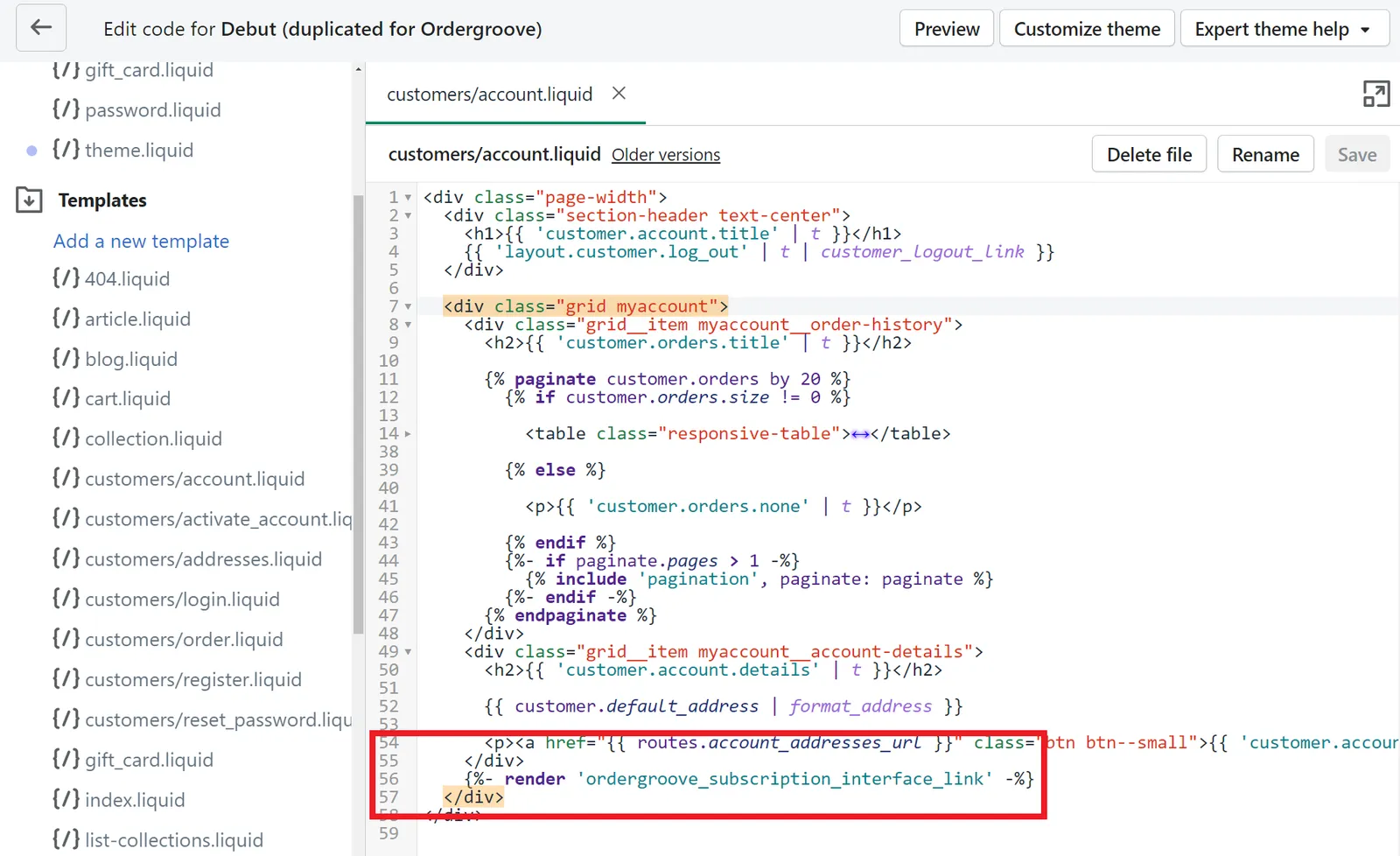
This line of code will create a button that takes the customer to the Subscription Manager. You can move that line of code to change where the button is placed on this page.