

Troubleshooting Cart Offers
Offers are JavaScript-injected content that allow a customer to enroll in your subscription program for a particular product. All platforms now have the ability to tag an enrollment offer on the cart page. If your cart offer is not working as expected, this article will help you troubleshoot and get it functioning as intended.
This article is not applicable to merchants using BigCommerce. For BigCommerce integrations, refer to our BigCommerce Integration Guide in the Knowledge Center.
Platform-Agnostic Troubleshooting
My Cart Offer Isn’t Appearing on the Page
-
Check that the Ordergroove offer tag is on your cart page. Right-click to inspect the page, then use Ctrl+F in the Elements panel to find the
og-offertag. Within the tag you should see the product ID, location, and frequency: -
Check that Ordergroove’s
main.jsis tagged on the page. It loads your offer content and styling, and is made up of the frontend static domain and your Merchant ID:
How To Upgrade Your Read-Only Offer
If you currently have an offer template on your cart page that customers can only read (not interact with), you should upgrade to the interactive cart offer template. This allows customers to enroll in a subscription directly from the cart page.
Navigate to the Enrollment page in the Ordergroove app. Click Create and scroll down to find the new Cart offer template.
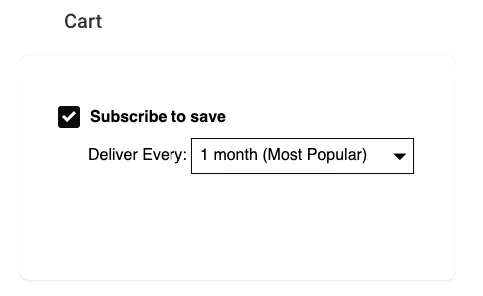
Once you have created, customized, and saved this new template, update the location on the og-offer tag on your cart page to match the new template’s location.
Why Aren’t the Same Products in My Cart Separate Subscriptions?
If you add the same product to your cart multiple times (as a subscription or one-time) and see duplicated behavior — such as changing the opt-in status for all instances of that product — this is expected.
Ordergroove’s local storage tracks subscriptions by product ID. When multiple og-offer elements share the same product attribute value, they are not treated as unique. Changing the opt-in or frequency for one will affect all of them.
Shopify-Specific Troubleshooting
Ordergroove injects code into Shopify’s theme files automatically. Because of this automation, there are a few extra places to check when things aren’t working correctly for Shopify stores.
Is Your Cart Offer Tag in the Correct Theme File?
The offer tag needs to be added to the cart page and the side cart page (if your theme has one). Search your theme for the files where cart item information is displayed — for example, where the photo and description for each item appear.
In the Dawn theme, the cart page is main-cart-items.liquid. In the Debut theme, it is cart-template.liquid. Look for files in your theme with similar names.
Is Your Cart Item List Generated via Liquid?
The product attribute on the og-offer tag expects the product variant ID, typically set via {{item.key}} in Liquid. If your cart item list is not generated via Liquid, you will need to adapt how you set this attribute — refer to your template language for the correct syntax to access the variant ID.
Tip: If you need to place the tag in a file that uses a non-Liquid templating system, wrap it between {% raw %} and {% endraw %} to exit and re-enter Liquid parsing.
Are You on the Latest Version of Ordergroove Offers?
You must be on the latest version of Ordergroove offers to use the cart offer feature. Check the following:
-
Open
ordergroove.jsunder Assets and confirm the file is empty. If it has any contents, remove them and save. -
Open
ordergroove_static_asset.liquidand confirm the script tag containingsrc="https://static.ordergroove.com/"includes thedata-shopify-selling-plansattribute:
Are You Using JavaScript to Refresh Your Cart?
Ordergroove uses Shopify’s cart API to refresh the cart when a customer changes their subscription selection, keeping prices and selling plan titles in sync. If you are using a minicart or side cart, or if your cart refreshes via JavaScript, you will need to hook Ordergroove’s cart refresh into your cart’s refresh process.
Identify how your theme triggers a cart refresh (a good starting point is how a quantity change triggers it), then fill in the template below:
Open ordergroove_static_asset.liquid and paste this function within the script tag containing JavaScript code, or elsewhere in your JavaScript that runs for the cart.
For example, place it right under the following lines in ordergroove_static_asset.liquid (just above the closing </script> tag):