

Integrating with Shopify Checkout
Ordergroove supports making changes to your Shopify checkout experience through Shopify’s Checkout Editor. This article details how to set up this functionality on your store.
The Ordergroove checkout block in Parts 2 and 3 requires a Shopify Plus plan, because Shopify makes checkout UI extensions in the information, shipping, and payment steps available only to Plus stores. Its features are in Early Access, and Ordergroove turns them on for your store. Talk to your Ordergroove Customer Success Manager for details.
Activating discount functions via Flex Incentives
Ordergroove’s latest version of Flex Incentives allows for self-serve configuration within RC3. For merchants on Shopify, this also changes how subscription discounts are applied during checkout. Rather than rely on Selling Plans, or previously Shopify Scripts, Ordergroove now uses Shopify Functions to create the discounts in your store.
When you publish an incentives profile from the self-service tool, it creates a discount in Shopify like the one below. Your store is then fully functional with the discounts you’ve configured, even if you don’t follow the additional steps below to update your checkout page.

Updating your Shopify checkout page
Once you’ve published an incentives profile and your subscription incentives appear in your store as shown above, you’re ready to review and update how these incentives display in checkout.
Part 1: Displaying today’s discounts (Shopify)
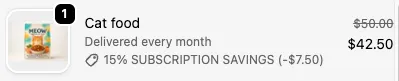
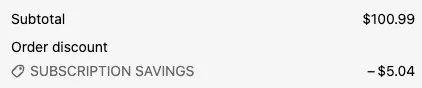
Today’s discounts are applied at the item level, the order level, or both, based on what you’ve configured. You don’t need to do anything to add this messaging to your checkout.
Item level example
Order level example
Part 2: Messaging the recurring incentives (Ordergroove)
When the recurring incentive for an item is different from today’s incentive, you can add Ordergroove’s item incentive messaging. To add it:
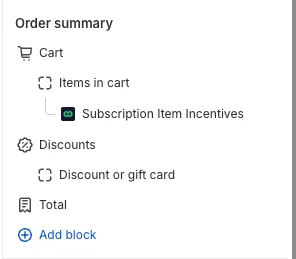
- Navigate to your store’s checkout editor blocks section.
- Under Ordergroove Subscriptions, click the plus sign next to Subscription Item Incentives, and then click Checkout to add it to your checkout page.
- Turn on Include block in Shop Pay so that this messaging also shows up when customers check out with Shop Pay.
- Click Save.
The block appears under Items in cart in the checkout’s order summary:
Example
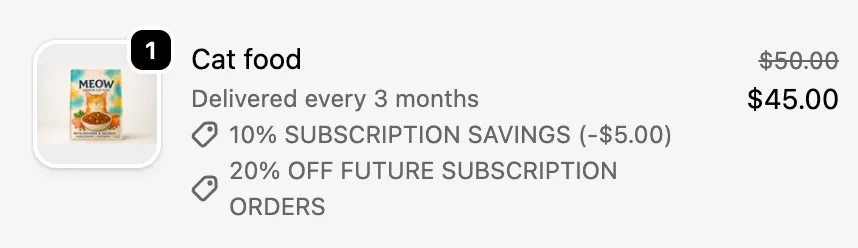
By default, the message is one of the following, based on what you’ve configured in your incentives profile:
- “X% off future subscription orders”
- “$X off future subscription orders”
- ”+ Benefits on future orders”, used when you’ve configured an incentive that varies on specific orders, such as a free gift on the 4th order
Part 3: Upsell from one-time to subscription in checkout (Ordergroove)
In addition to displaying recurring incentives, the Ordergroove block from Part 2 lets customers opt in to a subscription from within checkout for any item that’s currently set for one-time delivery. This upsell is a separate Early Access feature from the recurring incentive messaging, so contact Ordergroove if you’d like it turned on for your store.
Example
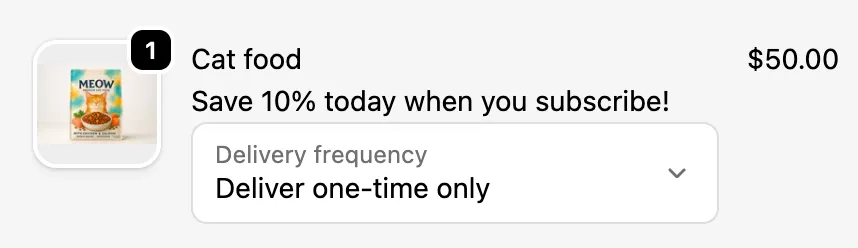
By default, the message is one of the following, based on what you’ve configured in your incentives profile:
- “Make it a subscription”, if there are no savings on today’s order
- “Save [X%/$X] today when you subscribe!”
Part 4: Modifying the recurring subtotal copy (Shopify)
Since Ordergroove’s Flex Incentives platform has more flexibility than what Shopify can execute out of the box, Shopify will often display an incorrect estimate for the recurring subtotal of a subscription checkout.
Example without customization

We recommend going to Edit default theme content, then Checkout & system, and making the following changes. The examples below are based on the Horizon theme’s defaults:
Example with customization
